hey you know how you always wanted to have your apps visible on discord rich presence, but the native way discord does it is actually terrible?
heres the surprise for you, i made it way better!
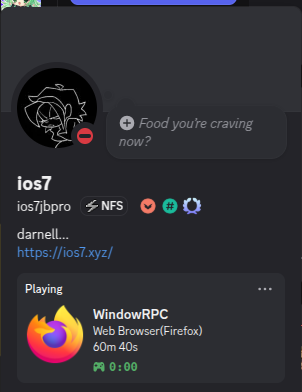
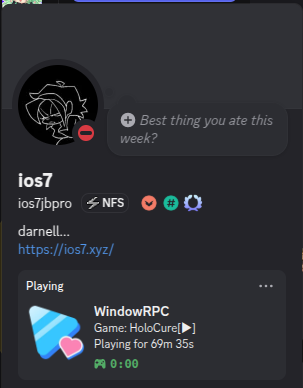
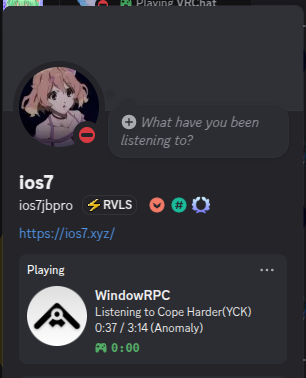
yeah, as easy as that! an actually decent RPC script that somehow handles it better than a multimillion dollar company! shocking, i know!
installation
the github repository is here
dependencies
running the script requires 3 dependencies, 2 from pip and 1 from system. for my case i use fedora, so it would be sudo dnf install kdotool playerctl. however it might be different on each distro, so look it up. yes, the packages are kdotool and playerctl.
coming to the pip dependencies:
pip install pystray pypresence
running the script
now that you have dependencies, lets download the linux branch of the script:
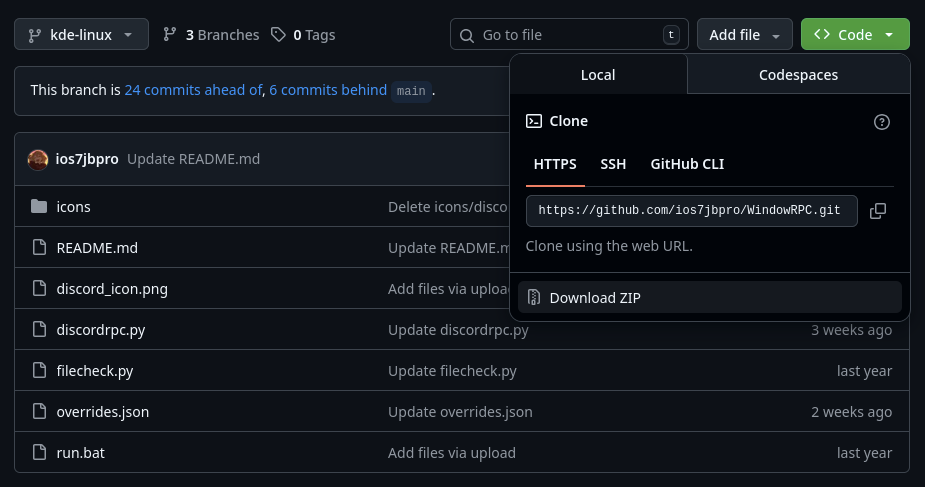 MAKE SURE YOU'RE ON THE KDE-LINUX BRANCH, THE MAIN BRANCH IS MEANT FOR WINDOWS.
then unzip and open a shell in the folder. and then:
python discordrpc.py
the script comes with a few defaults already meant for mainstream apps. you can see them on overrides.json
adding your own apps/customizing the rpc
open overrides.json to add/modify any app's output on the rich presence. you will realize that each app entry looks like this:
"MiSideFull": {
  "logo": "https://raw.githubusercontent.com/ios7jbpro/WindowRPC/refs/heads/icons/miside.webp",
  "details": "Game: MiSide[▶]",
  "state": "Playing for timestamp"
},
i will call them by their quote names to make it easier to understand here.
"MiSideFull" is the DETECTED app name. you can find your own app by looking at the output on the terminal. replace it with your own app, but make sure its not over 20 characters.
"logo" is self explanatory, a raw link to the app icon/logo that will display on the rpc.
"details" is also self explanatory, its the thing thats displayed on below the app title.
"state" is the last line.
it is recommended that you use the new gui editor as this post is likely outdated and has missing information which the new gui editor has:
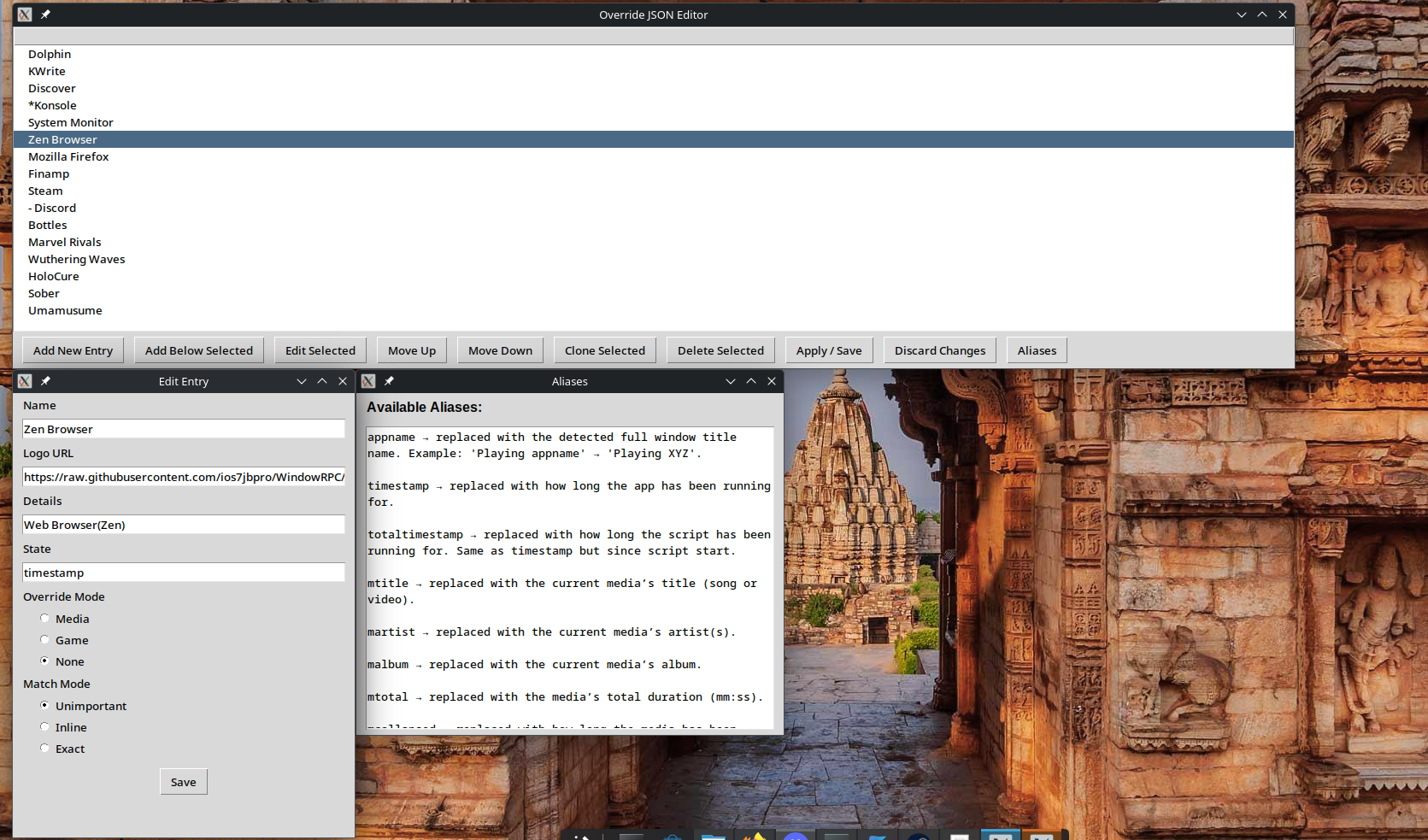
override modes
we now have priority modes:
game → highest priority. if a window with the game’s name is open, it always shows this override (even ignoring media and other apps).
media → medium priority. shows overrides when a media player is actively playing, ignoring the current app window. paused/stopped media fall back to normal app overrides.
regular app → default, matches current window title.
example:
"Minecraft": {
  "logo": "minecraft_icon",
  "override_mode": "game",
  "details": "Playing Minecraft",
  "state": "Survival Mode"
},
"Spotify": {
  "logo": "spotify_icon",
  "override_mode": "media",
  "player": "spotify",
  "details": "Listening on Spotify",
  "state": "martist - mtitle"
}
this example would check if minecraft is running. if not, it would then check if media is playing(doesn't matter if app isn't focused). if playing, show the spotify override. if not, fall back to regular overrides.
here is a diagram of the override modes so you understand it better:
Overrides Priority Flow
=======================

                 ┌───────────────┐
                 │   Game Override│
                 │(override_mode: game)
                 └───────┬───────┘
                         │ Active window open?
                     ┌───▼───┐
                     │ Yes   │ ──► Show Game override
                     └───┬───┘
                         │ No
                 ┌───────▼────────┐
                 │ Media Override │
                 │(override_mode: media)
                 └───────┬────────┘
                         │ Media playing?
                     ┌───▼───┐
                     │ Yes   │ ──► Show Media override
                     └───┬───┘
                         │ No
                 ┌───────▼────────┐
                 │ App Override   │
                 │ (matches window title)
                 └───────┬────────┘
                         │ Match found?
                     ┌───▼───┐
                     │ Yes   │ ──► Show App override
                     └───┬───┘
                         │ No
                 ┌───────▼────────┐
                 │ Default RPC    │
                 └────────────────┘
aliases
this is where the magic happens. you can drop in aliases that get replaced live in your rpc:
appname → replaced with the detected full window title name.
example: "Playing appname" → "Playing XYZ".
timestamp → replaced with how long the script has been running for.
mtitle → replaced with the current media’s title (song or video).
martist → replaced with the current media’s artist(s).
malbum → replaced with the current media’s album.
mtotal → replaced with the media’s total duration (mm:ss).
mcollapsed → replaced with how long the media has been playing (mm:ss).
if the media is paused, this shows "Paused".
so for example, if you’re listening to spotify, you can do:
"Spotify": {
  "state": "Listening to martist - mtitle",
  "details": "Album: malbum | mcollapsed / mtotal",
  "logo": "spotify_icon"
}
and if paused, mcollapsed will automatically say "Paused" instead of the time.
to customize the DEFAULT rpc that shows up when no overrides are detected, instead open the default.json file. the content will look like this:
{
    "default": {
        "details": "Currently using:",
        "state": "timestamp - appname",
        "interval": "5"
    }
}
details and state are the same things as above including all aliases.
interval however, changes how often to update the rich presence. 5 is the recommended value here to not get ratelimited by discord.
after you've done all the changes, there is no need to exit and re-run the script. instead, the script creates a tray icon, which you can right click and refresh all json files with:
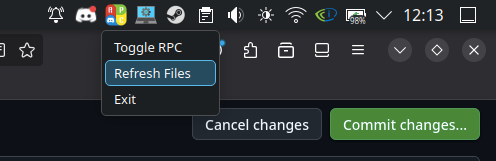
you can also toggle or exit the rpc with options shown above.
but what about gnome or other desktop enviroments?
create an issue with modified code yourself, showing off it working on your preferred desktop enviroment. i only use kde, hence why i only did it for kde.
it shouldn't be too hard to port this to other desktop enviroments, as long as they have a way of exposing the current active window. and yes, this kde-linux branch of the script works with wayland.